

To set up two-step verification in the Customer Panel (for logging in to WEBD.pl), you need to have the Google Authenticator app installed on your phone. The steps below will help you quickly and easily enable this new login method.
- Log in to the WEBD.pl website, find the 'Security' tab, and then select Configuring Two-Factor Authentication.

2. Scan the displayed QR code using the Google Authenticator app on your phone. If you don’t have a QR code scanner, you can also manually enter the key shown below the QR code.
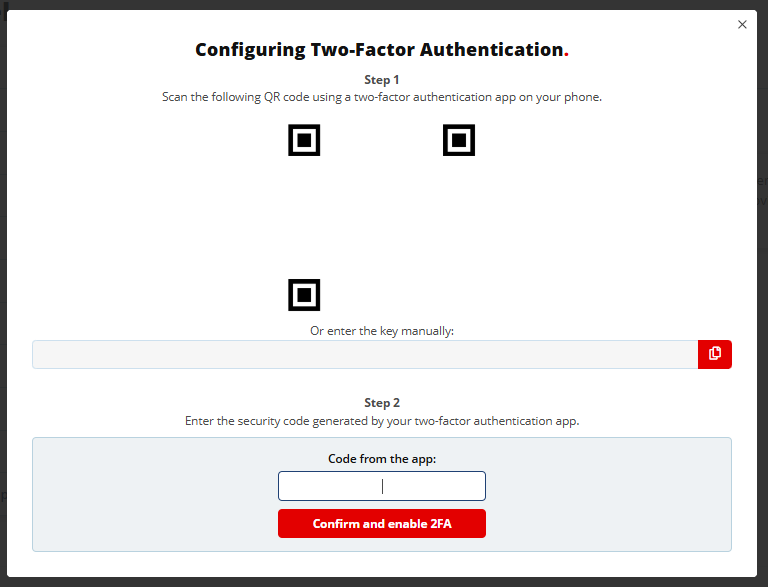
3. Next, enter the 6-digit code generated in the Google Authenticator app on your phone, then click Confirm and enable 2FA
From this moment on, logging in to the Customer Panel is protected by two-step identity verification— congratulations!