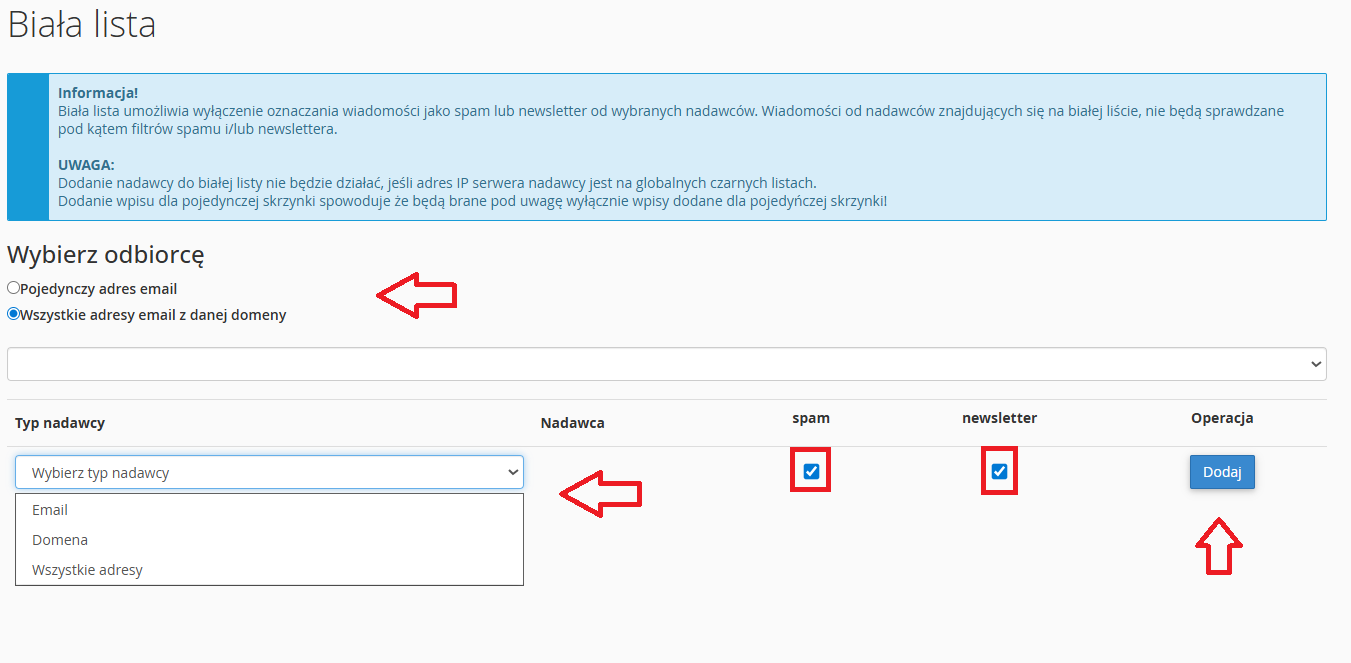

The Whitelist allows you to disable checking of incoming messages for newsletter or spam classification for the senders or sender domains listed there.
To use the whitelist, go to the “Whitelist” option in cPanel.
-
Choose whether you want to remove filters only for a specific email address or for all emails from a given domain.
-
Next, select what you want to add to the list, such as: the sender’s email address, the sender’s domain, or all senders.
-
The “sender email address” option allows you to add the exact email address of the message sender, and filters will apply only to that address.
-
The “sender domain” option allows you to add all email addresses from the same domain. Selecting the “also add subdomains” option will add a wildcard for the domain, so that all mailboxes in subdomains of that domain are also included.
-
The “all addresses” option will cause all message senders to be added to the whitelist.
NOTE: Selecting the spam and/or newsletter option will add an entry to the spam whitelist and/or newsletter whitelist.
After entering the appropriate information, click the “Add” button to finally add the entry to the whitelist. If you want to remove an entry from the whitelist, simply click the checkbox in the spam/newsletter column in the row corresponding to that entry.